LogRhythm
集成 GravityZone 与LogRhythm云端集成
作为 Bitdefender 合作伙伴,您可通过 GravityZone 与LogRhythm进行集成,使用 GravityZone API及LogRhythm开放式采集器。该服务支持您从 GravityZone 控制中心 至LogRhythm。
要求
-
已安装PM角色的LogRhythm实例。
-
安装有LogRhythm Open Collector代理的虚拟机。
-
安装有LogRhythm系统监控代理的虚拟机。
集成步骤
在以下位置启用事件推送API GravityZone 控制中心
-
登录 GravityZone 控制中心 .
-
前往 我的账户 .
-
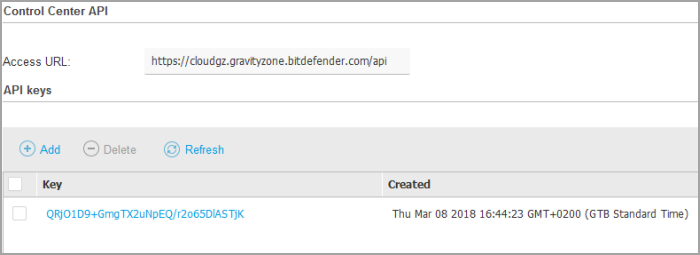
在 API密钥 部分,点击 添加 .
-
勾选 事件推送服务API 复选框并点击 保存 。新密钥将显示在API密钥表中。
-
点击 保存 以保存对 我的账户 页面。
在Logrythm中配置集成
-
登录已安装Open Collector的终端。
-
配置 Webhook Beat。
-
初始化Webhook Beat:
-
启动Beat:
./lrctl webhookbeat start
显示配置菜单。使用键盘方向键在字段间导航。
-
选择 新建webhookbeat实例 。
-
在 输入webhookbeat实例的唯一标识符 处,输入实例名称。
-
使用 输入webhook配置的主机名/IP 设置监听器。默认值为
localhost.注意
若使用自定义主机名/外部IP,请确保其在指定端口公开暴露,并映射到运行beat的同一系统。
-
在 输入Webhook服务器beat接收数据的端口 处输入8080。
-
在 是否启用HTTPS? 处选择
否. -
重启Open Collector和Metrics以应用新设置。
./lrctl oc restart && ./lrctl metrics restart
-
-
配置Open Collector处理来自 GravityZone 事件推送服务的反恶意软件和防火墙事件。
-
下载 这些插件文件 并将其复制到存放
lrctl脚本的Open Collector主机上。 -
启用自定义OC管道(若尚未启用)。
./lrctl ocpipeline install ./lrctl lrjq install
-
导入插件。
cat bitdefender.pipe | ./lrctl oc pipe augument import
-
重启Open Collector上的所有服务。
./lrctl webhookbeat restart && ./lrctl metrics restart && ./lrctl oc restart
-
-
准备用于
main.go脚本的证书。可使用现有证书或生成新证书。 -
运行
main.go脚本并配置其接收事件推送服务的事件。-
首次运行
main.go时需配置webhook地址、证书及私钥。go run main.go
-
输入webhook的IP地址。若脚本与webhook运行于同一主机,可保留
localhost.未找到配置文件。请提供以下信息: 对于OC webhook,默认使用localhost。是否要更改?(y/n)
-
输入
8080作为端口。对于OpenCollector Webhook端口,默认使用8081。是否要更改?(y/n) -
使用您在步骤5中准备的证书。
输入证书.crt文件的路径ca_crt_file_path(您可以尝试使用fullchain.crt:
-
输入证书的私钥。
输入privkey.cem文件的路径ca_priv_file_path(您可以尝试使用privkey.pem:
-
禁用调试模式。
启用调试模式?(y/n) -
再次以服务器模式运行脚本。
这将监听443端口,是端点应发送事件的位置。
-
-
将以下JSON发布到 GravityZone API,替换以下标签以匹配您的设置,并将要监控的事件设置为
true:{ "params": { "status": 1, "serviceType": "jsonRPC", "serviceSettings": { "url": "https://<agent_ip>:443/webhook", "requireValidSslCertificate": false, "authorization": "<secret>" }, "subscribeToEventTypes": { "hwid-change": true, "modules": true, "sva": true, "registration": true, "supa-update-status": true, "av": true, "aph": true, "fw": true, "avc": true, "uc": true, "dp": true, "device-control": true, "sva-load": true, "task-status": true, "exchange-malware": true, "network-sandboxing": true, "malware-outbreak": true, "adcloud": true, "exchange-user-credentials": true, "exchange-organization-info": true, "hd": true, "antiexploit": true } }, "jsonrpc": "2.0", "method": "setPushEventSettings", "id": "1" }注意
仅
av和fw事件在LogRhythm中可用。 -
配置LogRhythm以显示低优先级事件,并通过使用EICAR或执行端口扫描来测试集成:
-
在LogRhythm PM上,打开LogRhythm控制台。
-
选择 部署管理 .
-
打开 平台管理器 选项卡。
-
将全局风险优先级从
50调整为0.注意
EICAR测试事件为10分,端口扫描为19分。
-
应用更改。
-
使用EICAR或端口扫描生成事件。
-
-
根据您的具体需求和环境,配置LogRhythm中步骤8指定的风险优先级。